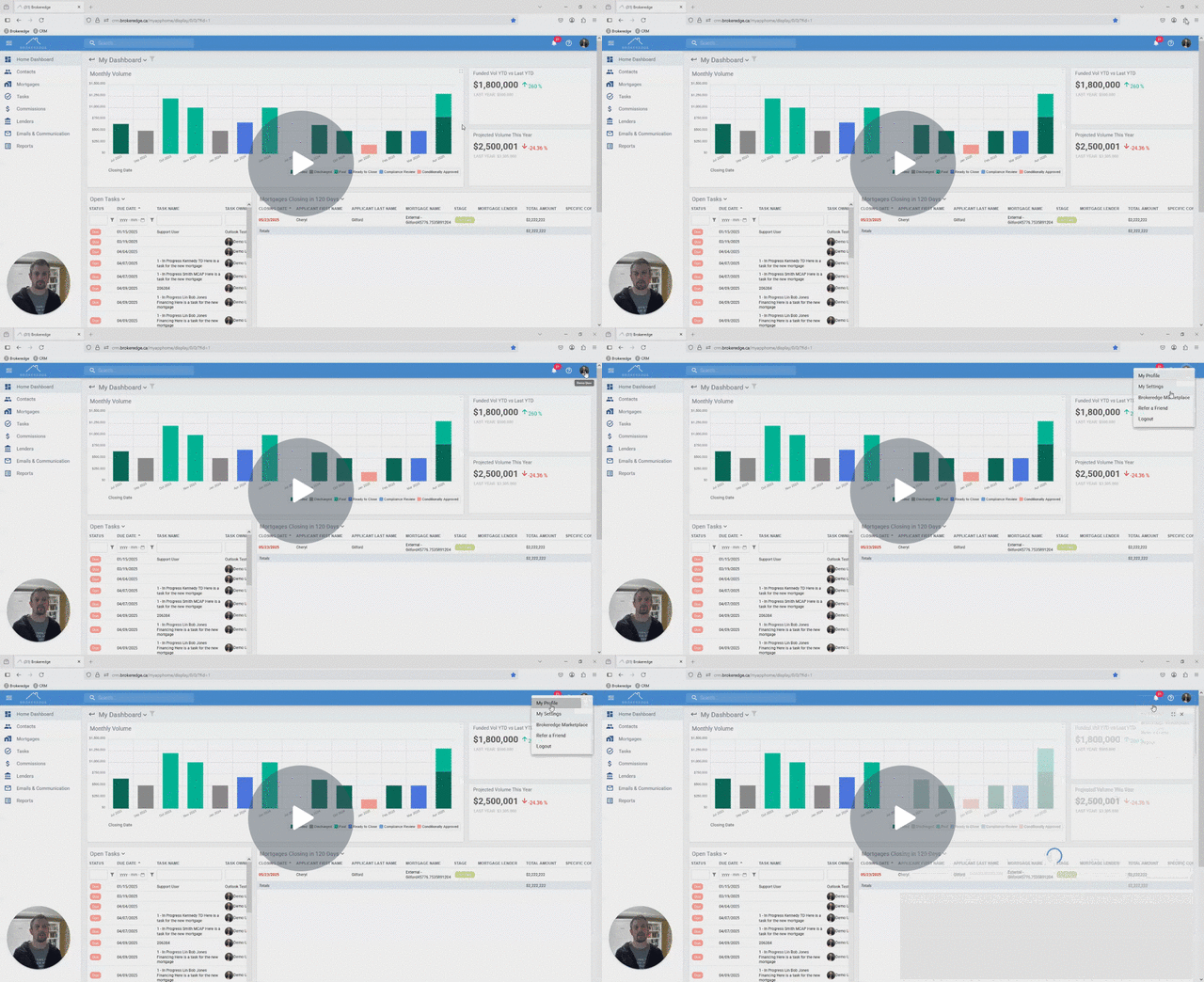
Managing Team Subscriptions in Brokeredge (Pay for a new Team User)
If you want to add a new team member and pay for those users on your team, Brokeredge makes it simple to manage subscriptions directly from your profile.
How to Subscribe a New Team Member:
- Navigate to My Profile > Manage My Subscriptions tab>Subscribe a New User to my Team
- Enter the new member’s details and select the subscription level type of payment (full or partial).
- Once selected, Brokeredge will automatically add the subscription to your existing subscription for payment.
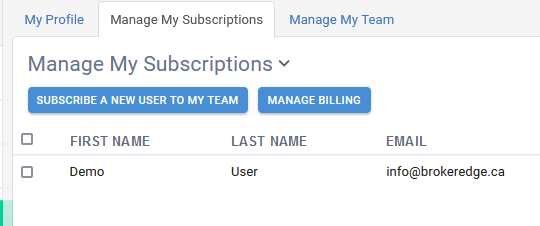

- Once you have added the team member subscription you then have the ability to add them as a team and setting their team role in relationship to you. This will be sent as an email invite for them to accept. Go to the Team Members Tab>Invite an Existing User

- Fill in their name, email and team role.

Subscription Levels:
- Assistants and underwriters fall under the Partial or Associate level subscription.
- Note: Partial level subscription cannot connect to the submission platform

Managing Subscriptions:
- To manage your existing subscriptions, go to the Manage My Subscription tab.
- Here, you can edit user details or deactivate existing users as required.
How-to Video: How Manage your Teams and Subscriptions