
Create a Custom Mortgage Journey View
**If you simply want to move or reorder or add fields you don't need to create a custom view. Check out this article on how to Rearranging and Editing Kanban Columns**
To change the view or create a new on the Mortgage tab, click on the dropdown arrow next to the title and select the relevant option. If you create a custom view, this view will be saved on your dashboard and you can check it anytime by selecting the dropdown arrow next to the title. Note, you can create a view on both charts and tables.
Here is a sample of how to create a custom mortgage view:
1. Select Add View
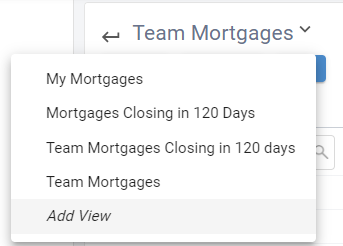
Note: The view created will be created with the same logic as the view you're currently on. For that reason, it's best to create the view from the All Mortgages tab since it has no logic applied.
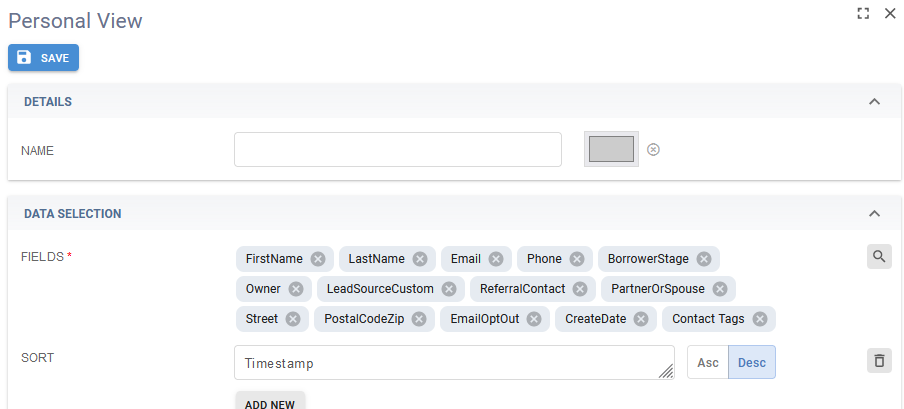
2. Name the report and select the fields you wish to display. You can choose to add a sort and a group if need be.
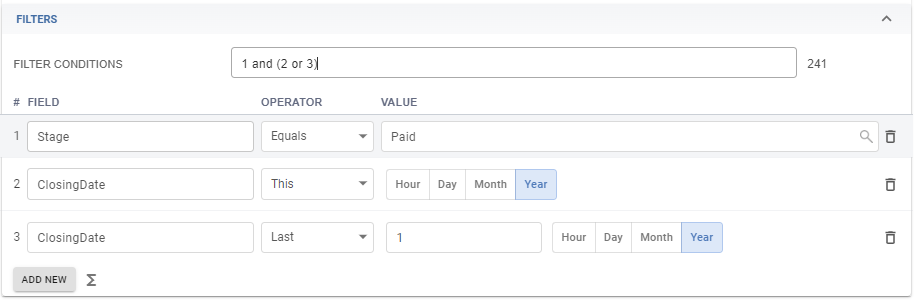
3. Add the fields you want to filter by. In this case we'll look at deals paid both this year and last year. Note, if a filter could be either or something, like our dates, either this year OR last year, then you have to add the word 'or' to the Filter Conditions.
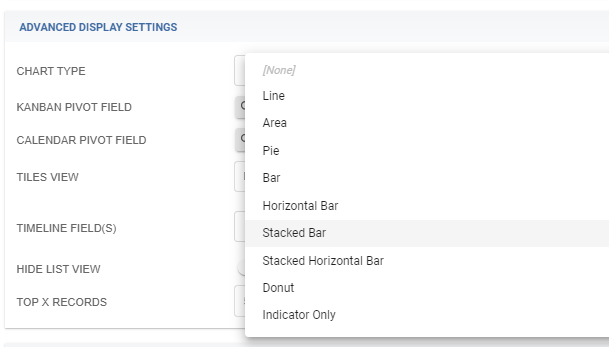
4. The default view is a table view, but you can add a kanban or chart view if you want as well.
5. Once you hit save, the report will generate. At any point, if you need to edit it, you can do so by clicking the pencil icon beside the title.

Watch a video walkthrough here: