
Creating a Custom Contact View
**If you simply want to move or reorder or add fields you don't need to create a custom view. Check out this article on how to Rearranging and Editing Kanban Columns**
Overview:
Custom contact views allow you to generate reports tailored to your needs—whether you prefer a table, Kanban, or chart view.
Steps to Create a Custom Contact View:
- Start a New View:
- In your main view, click the dropdown arrow and select "Add View".

2. Configure the View:
- Name the view and choose the Kanban option by selecting Custom Contact Journey as the Kanban field.
- Select Columns:
- Choose the columns you want to display. (Remove any unnecessary columns such as a default “none” column.)
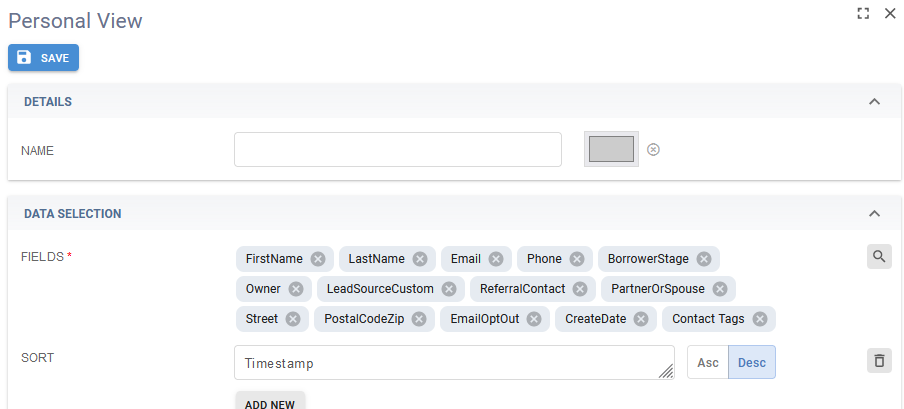
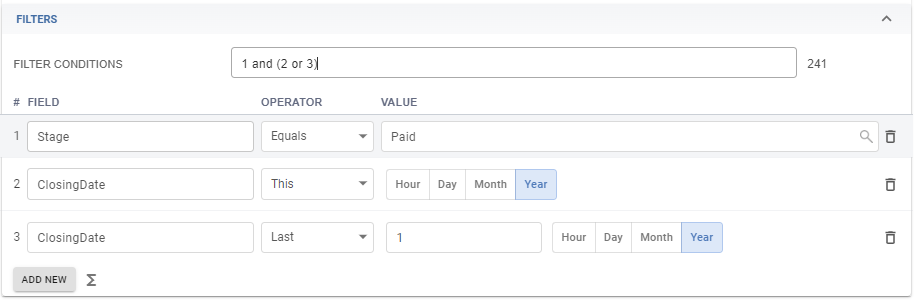
- Apply Filters:
- Note, if a filter could be either or something, like our dates, either this year OR last year, then you have to add the word 'or' to the Filter Conditions.
- Add Different Styles:
- The default view is a table view, but you can add a kanban or chart view if you want as well.

- Editing your View:
- Once you hit save, the report will generate. At any point, if you need to edit it, you can do so by clicking the pencil icon beside the title.

Watch a video walkthrough here: