
See Contacts Who Have Unsubscribed and Manually Set Contacts as Unsubscribed
There are a couple ways to view any contacts who have Unsubscribed to your Emails. With Canadian Anti-Spam Legislation (CASL) you should always include an unsubscribe button in your marketing emails for contacts to 'opt-out'.
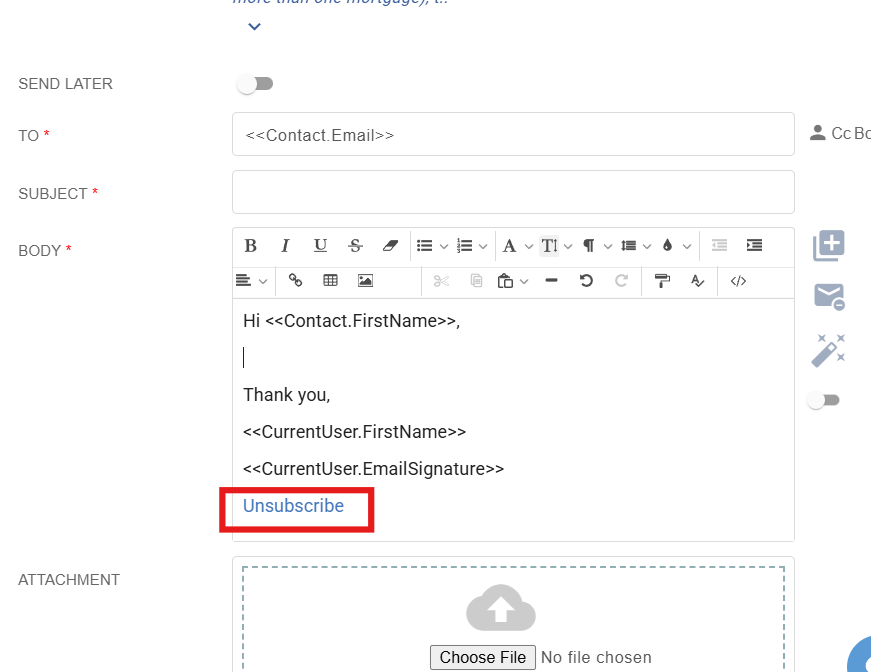
Contact who have selected to 'Unsubscribe' can be identified in Brokeredge. It will show as 'Communications Opt Out' in their contact profile.
Contacts who have unsubscribed, will not receive mass emails, birthday messages or marketing any more.
They will still get emailed marketed to their specific mortgages.
You can go to the main contacts tab and scroll horizontally to the right of the contact page and look for
Communication Opt Out

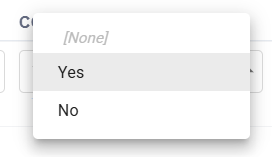
If you select the down arrow, choose 'yes' and the results are those who have chosen to unsubscribe.
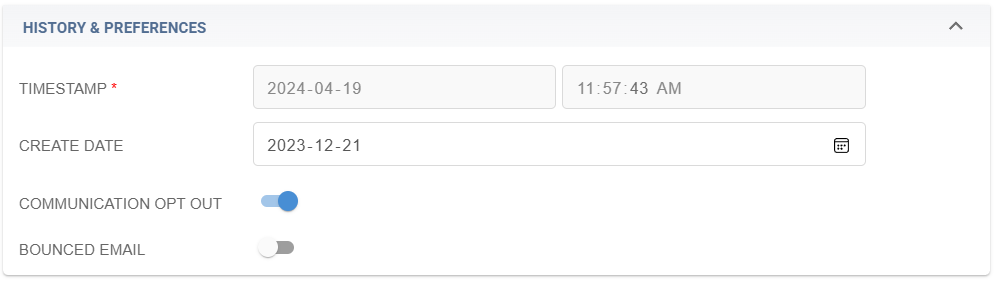
You can also set this manually in any contact: To do this, go into a contact profile and scroll down to the ' History and Preferences' section and expand it and will see the Communication Opt Out' toggle there.
See Similar Article on 'Do Not Contact': https://help.brokeredge.ca/article/186-how-to-stop-emails-all-emails-from-being-sent-to-a-contact-do-not-contact