
Twilio - Your Own Number
To activate the integration, go to My Settings, toggle on Third Party Integrations, toggle on Integrate SMS and select Twilio, then Number Type "Use Your Own Twilio Number".
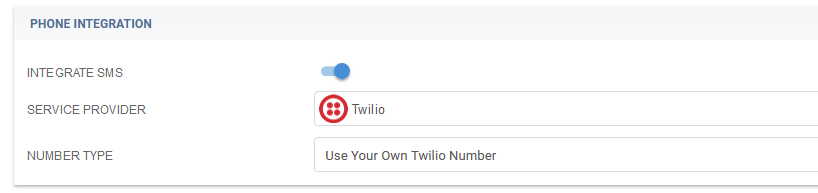
To connect your own Twilio account to Brokeredge, you'll need to enter the phone number, Twilio Account SID and Auth Token into Brokeredge. You'll also need to add a webhook on your Twilio account.
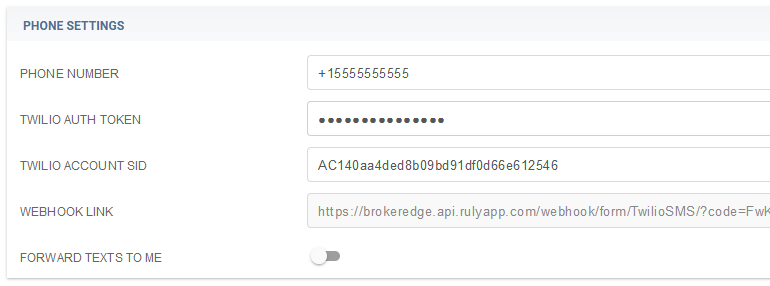
Here's how to find everything:
1. If you don't have a Twilio account, here's how to get one.
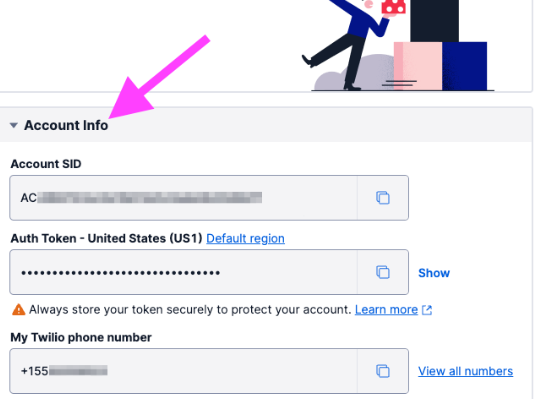
2. To get your Account SID, Auth Token and Phone Number (format +1###) from Twilio, log in to Twilio and scroll down to the Account Info section and copy all 3 items from Twilio and paste them in to the respective fields in Brokeredge.
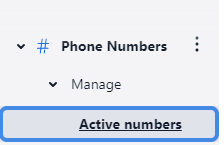
3. To update your messaging webhook link - go to Phone Numbers -> Manage -> Active numbers.
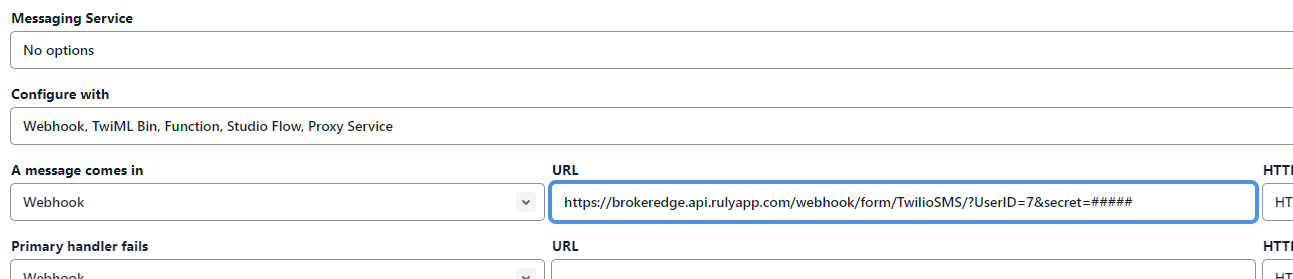
Then scroll down past the Voice configuration to the Message Configuration and paste the Webhook link from Brokeredge Settings into the URL section and hit save.
Note: with Twilio, you also have the option to forward texts to yourself.
If you turn on Forward Texts To Me, we will send you a text with the contact's name, number and their message. Note: this acts like 2 messages - 1 from the contact to your Twilio account, and 1 from your Twilio account to you. The forwarded text you will receive will look like this "Name: ####: Message".

Note - it is possible to only send 1 message, but the message will not display in Brokeredge and the forwarded message will not contain the contact's name. If you wish to send only 1 to yourself - you can set that up by following these directions.
*Automated Emails can be triggered to send via text if desired. You can toggle on
'Send Via Text'
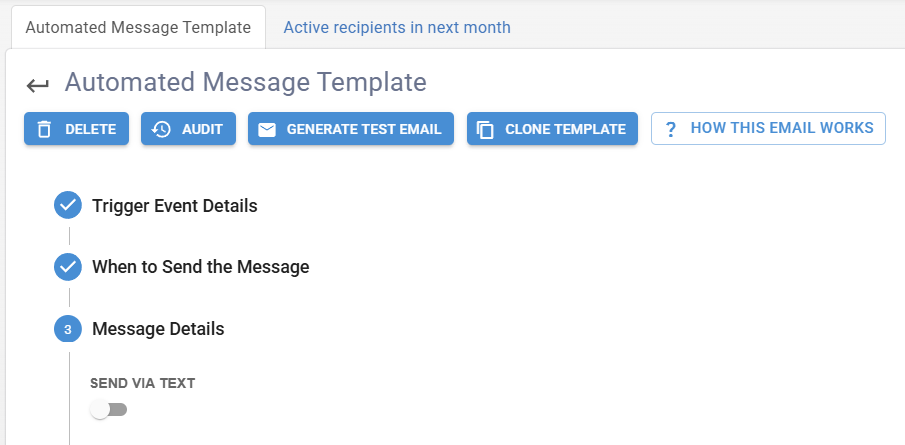
This will open up a text box for you to add your message.
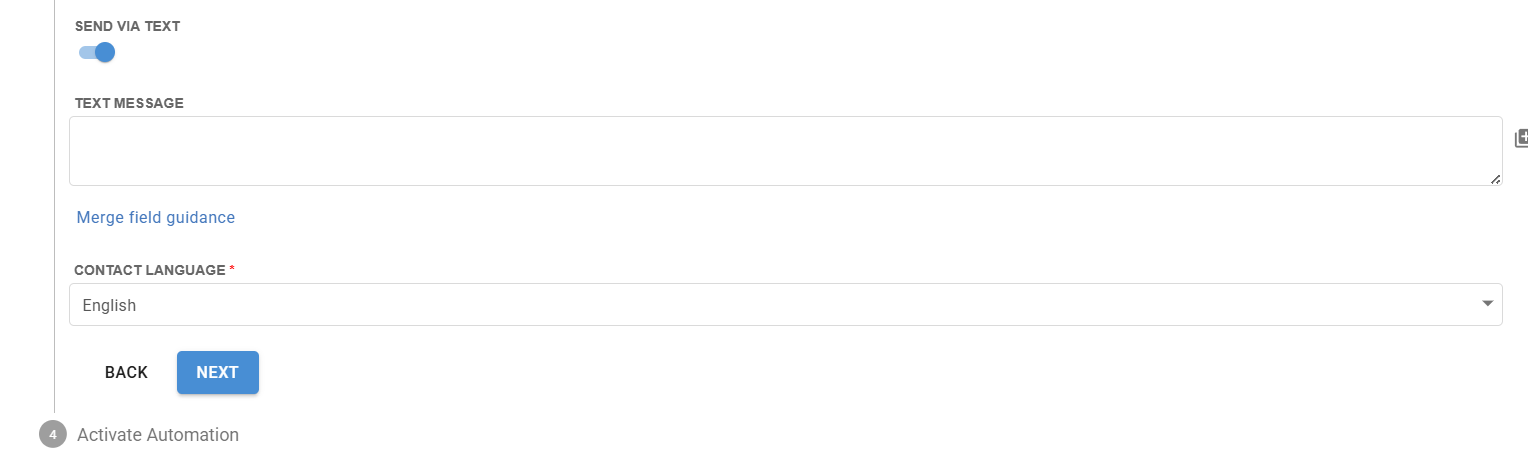
You can still 'approve before sending' on text automations, there just is no option to edit these texts prior to sending.