How to Create an Automated Task
How to Create an Automated Task
Automated Tasks can be used to automatically generate reminders for you, or someone on your team, whenever the workflow event is triggered. By templating your tasks you will have this task reminder each time that triggered event occurs.
To make an Automated task template go to the 'Tasks' tab on the left side of Brokeredge.

Here's how to create an automated task: If the task is contact based, create it in the Client Journey Automations tab. If it is mortgage based (example: its triggered by a mortgage stage) Create the task in the Mortgage Journey Automations tab

1. Locate the Tasks Title (Trigger) where you want to create a new Automated Task, hit the + button below it.

2. Workflow: An Task Template will open. It will default to to the trigger you selected under that Select the Workflow that will drive the task. You can also use the dropdown to select others. Note: Read the description and the execution trigger date so you understand what the dates are based off of. For a Refinance workflow, the tasks will be triggered based on the maturity date. So if you set an task to trigger "6 months before", it will trigger 6 months prior to the maturity date of a mortgage.

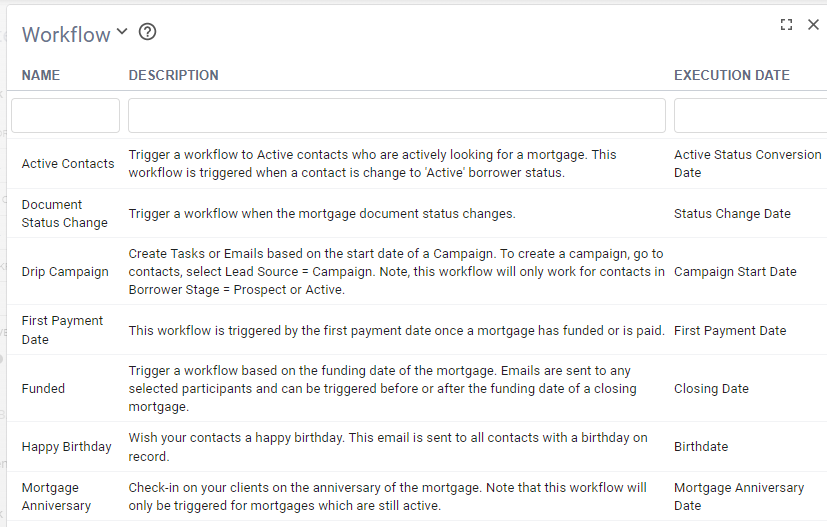
3.When to Send the Task: As mentioned above, this timeline is relative to the trigger Execution Date. You can double check that by clicking back on the workflow field above.

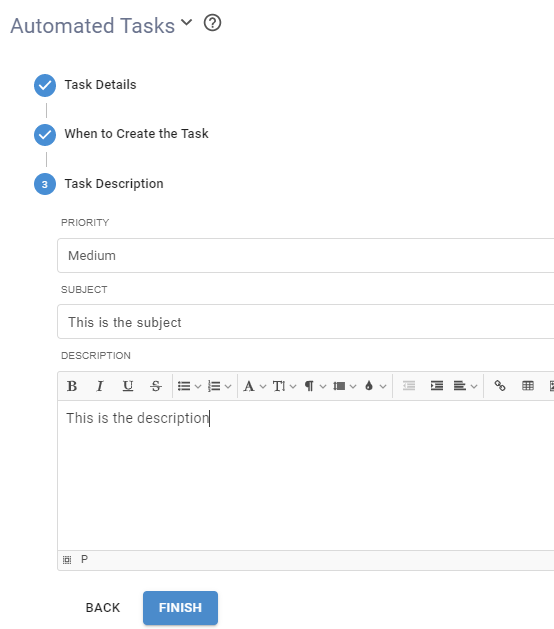
4. Task Details: Update the task priority, subject, and body. The + button on the site will open up a list of merge fields you can add to the task. Details about the mortgage are under the "Mortgage" dropdown, contact details (like name) are in the "Contact" dropdown, and your details are under the Contact>Owner dropdown.
5. Active: Turn the task on by toggling the Active button. Note, the tasks will be based off of records owned by the Record Owner. You can also assign the task to someone else on your team if you change the Task Owner

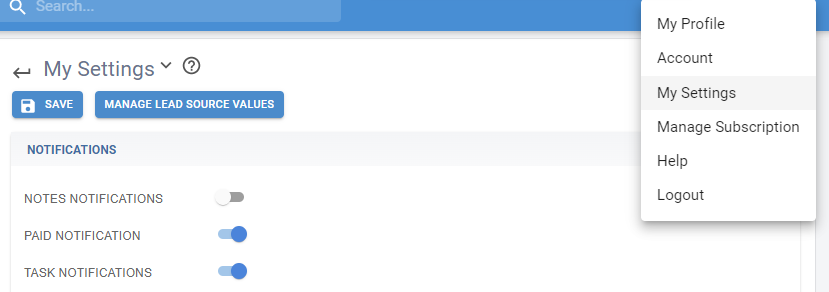
6. Active tasks will be automatically created on the due date and set to Overdue. You will get an alert in the bell icon on the top right of your screen. By default, you will also receive an email notification. You can turn off these notifications by going to the My Settings tab below your My Profile tab and turning them off.