
How to Send Mass Emails
With Brokeredge, you can email clients automatically via Email Workflows, directly via the Email button on a contact page, or in groups via the Mass Email page.
You can use mass emails to send a notification to all of your clients or a select group, like Real Estate Agents only.
How to send a Mass Email
1. Go to the "Emails & Communication" section on the left bar, then click on the "Mass Email Contacts" tab. The Mass Email section will display all contacts who have an email and have not opted out for emails. Note: if you want to email contacts with respect to their mortgage, then use the "Email Mortgage Participants" tab.
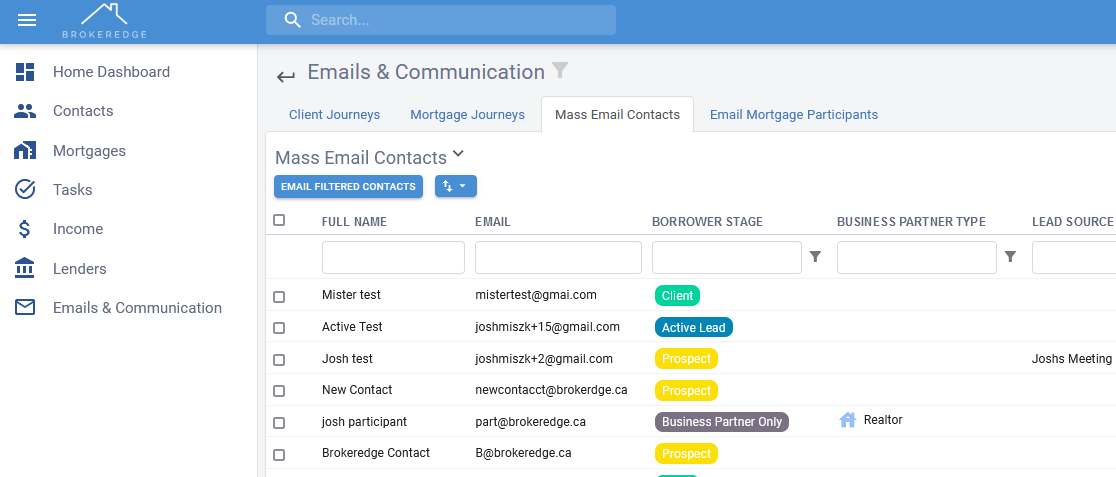
2. To narrow down the list of contacts, criteria to the filters, then hit the "Email Filtered Contacts" button.

3. The email editor will pop up. Here you can see the number of contacts who will be included in the email. Before sending, change the subject and the body of the email. Brokeredge will automatically include an unsubscribe link for your own compliance, you should leave that in so that contacts can unsubscribe if they wish to do so.
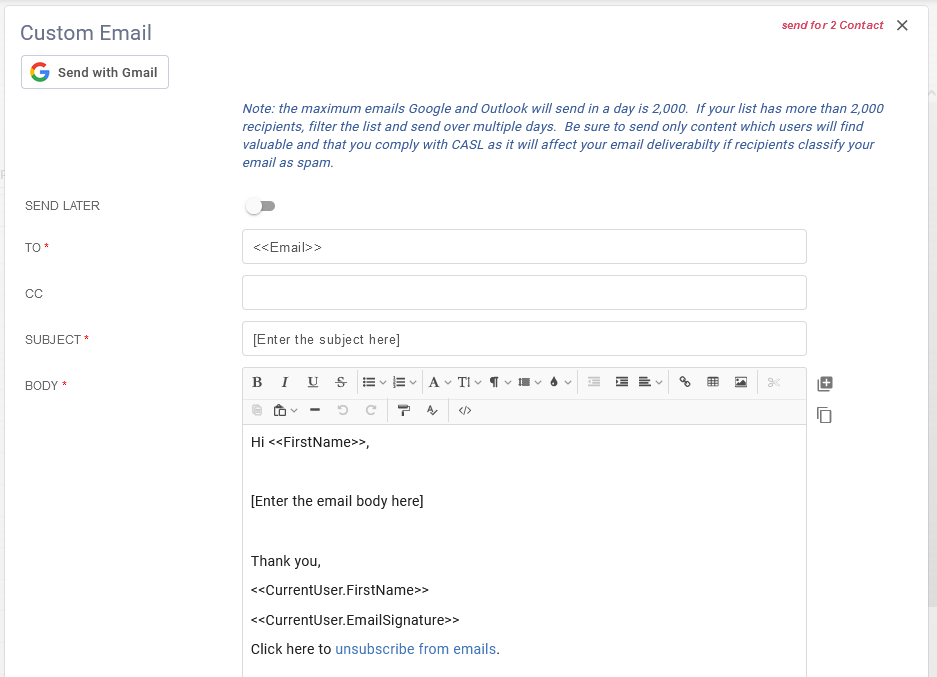
4. To add any additional dynamic fields, like contact last name, or your application link, hit the + button on the side and select the appropriate fields to add. Note: your details will be under the "Owner" section.

5. If you want to schedule the email to send at a different time, you can use the send later feature and the email will send within 30 min of that selected time.

Important: It is very important that emails sent to a group of contacts are of the highest quality to avoid any of your contacts classifying the emails as spam. It is also important to ensure the contact list will have as few bounced email as possible. Spam and bounced emails will affect your email credibility in the future which trigger email servers to classify your emails as spam. For additional guidance on mass email best practices, see this article: https://support.google.com/mail/answer/10979322?hl=en.