
How to Create a New Automated Email
The system is pre-loaded with several existing templates, but you may wish to create a new one yourself. The simplest way to create a new email is to clone one that already exists. If you want to create a client related journey, clone an existing client journey email. And to clone a mortgage related journey for a new mortgage journey.
- Select the Workflow:
- An Email Template will open.
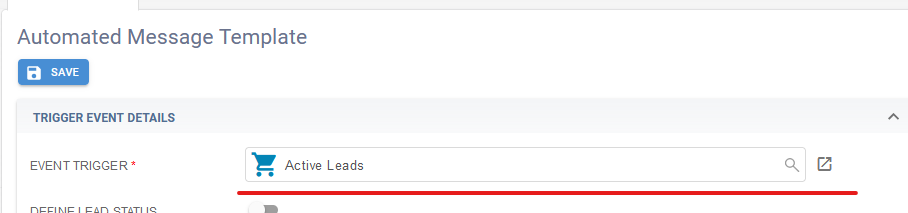
- Choose the Workflow that will drive the email.
- Review the workflow description and execution trigger date. For example, in a Refinance workflow, emails are triggered relative to the mortgage maturity date (e.g., "6 months before" means the email will trigger 6 months prior to the maturity date).
2. Set Recipients:
(This applies when the workflow is based on a mortgage journey), then you can add the participant roles to the email and only participants with those roles will receive the email. Note: On mortgage emails, a CC field appears only if the additional recipient field is left blank. If it is based on the contact, like a birthday or an Active contact, then there is no need to enter who it will go to.

Video on CCing a Recipient
3. Define the Timing:
- Confirm when the email should be sent relative to the trigger execution date.
- You can double-check this by clicking on the workflow field for details.

4. Customize Email Details:
- Update the email subject and body.
- Use the + button to insert merge fields:
- Mortgage Details: Found under the "Mortgage" dropdown.
- Contact Details: Found under the "Contact" dropdown.
- Your Details: Found under the "Contact > Owner" dropdown.
- Note: if you have SMS enabled, you can indicate here if this will be a text message instead of an email

5. Active:
Turn the email on by toggling the Active button and set the time you want the email to go out (the time is only available on emails not set to Approve Before Sending).

6. Approve Before Sending:
- If you want to approve the email before it reaches the client, enable the approval option. Brokeredge will send you an approval email before sending it out. If you approve, the email goes to the client; otherwise, it will not be sent.

- Save and Test:
- Click Save or Finish to save your email template.
- Use the Generate Test Email button at the top of the page to test the email. Select a sample contact to populate the merge fields; note that the test email will only be sent to you.
