
How to Merge Duplicate Contacts
Brokeredge is designed to minimize duplicate contacts. When a new contact is created, Brokeredge checks for an existing contact with the same name and email and simply updates that record. For contacts created via a mortgage, the system links the new record to any non-Client contacts with the same email—even if the names don’t match exactly.
However, in some cases—such as when an email is changed or a typo occurs—a duplicate contact may be created. In these situations, you can manually merge the duplicate contacts.
Steps to Merge Duplicate Contacts:
- Locate the Duplicates:
- Navigate to the Contacts tab and search for the duplicate records you need to merge.
- Select the Contacts to Merge:
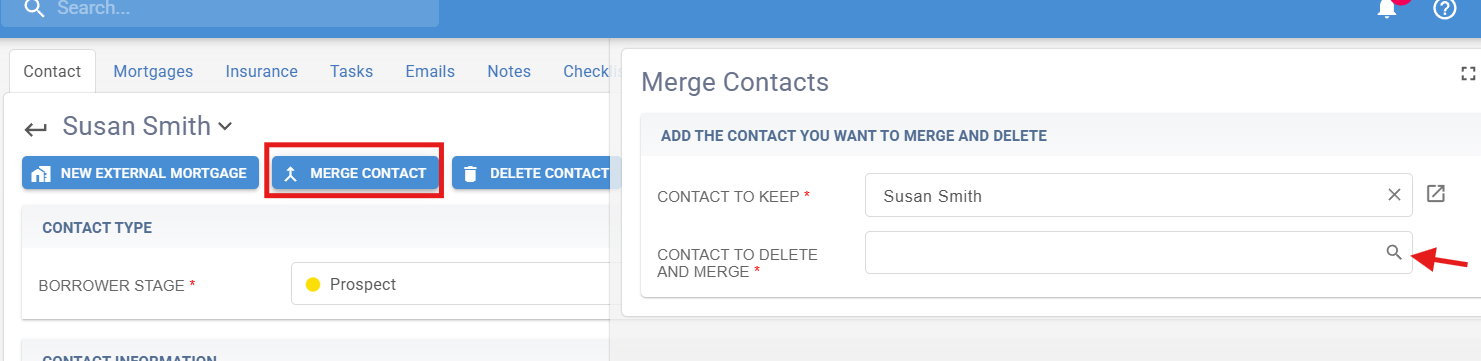
- Go into contact profile you want to keep.
- Initiate the Merge Process:
- Click the "Merge Contact" button.
- Select the contact to be deleted.
Note: You can also see a list of potential duplicates by navigating to Home Dashboard > Contact Reports and scrolling to the bottom:
