
How to Import Contacts into Brokeredge
Steps to Import Contacts:
- Get a Sample File:
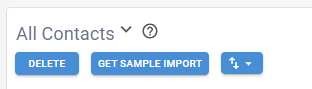
- Navigate to the Contacts section and click "Get Sample Import" to download a sample file compatible with Brokeredge CRM.
- Export the Sample CSV:
- On the Sample Import Contacts page, click the up/down arrows and select "Export as CSV". This file will contain a sample of 5 of your current contacts.

- Prepare Your CSV File:
- Open the CSV file and paste in the values for the contacts you wish to import. Keep row 1 (the header) intact and add your data below it.

- Import the Contacts:
- Return to any Contacts page, click the up/down arrows, and select "Import".
- Select your updated CSV file, verify that the date format is correct, then click "OK".
- Important:
- Only new contacts will be imported. If a contact with matching First Name, Last Name, and Email already exists, it will not be imported again.
Alernative option 1- Import with AI
Go to the contacts tab>Import> AI Import Contact

Drag File

From there it will give options to map columns to the right field. Once done click 'Import'

Alternative option 2. - if you need help importing your contact data, the Brokeredge team can import them for you. The file must be a CSV.
Go to My Profile > Import > Other Contact & Mortgage Data and drop the Excel or CSV file there. We review it as soon as possible and import what we can for you.