
How to Use the Gmail Plug-in with Brokeredge
Overview:
If you use Gmail, the Brokeredge plug-in lets you quickly add contacts to your CRM, check their details, and log emails directly from your Gmail interface.
How It Works:
-
Automatic Detection:
When you open an email with the plug-in installed, Brokeredge will check if the sender exists in your CRM.
- If the person doesn't exist: You'll see an option to create a new contact.
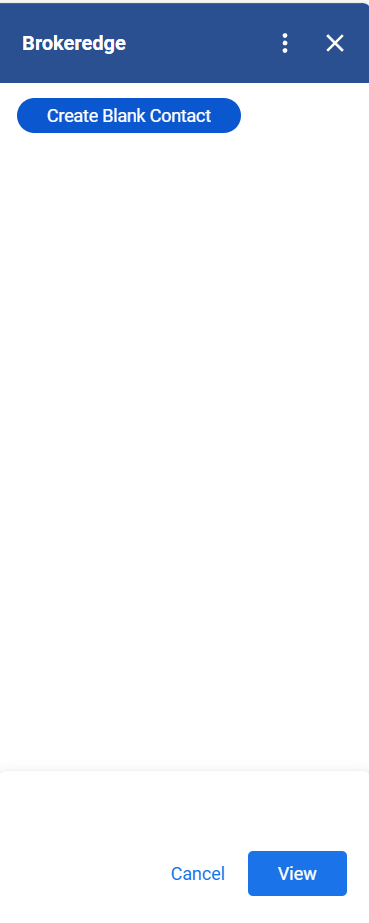
- If the person exists: A "View Contact" option is displayed.
- Creating a New Contact:
- Click Add New to create a contact.
- Enter details such as first name, last name, phone number, and select the appropriate contact type and lead source.
- If there’s a CC’d person already in the system, you can add them as a refer contact.
- Click Add to CRM to save the contact.
-
Logging Emails:
Once a contact is created (or if they already exist), you can log the email directly to their record by clicking the Log Email button.
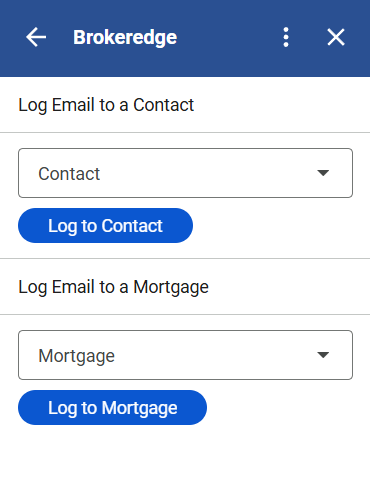
You can then select to log the email onto a contact and/or a mortgage
How to Get the Plug-in:
-
Direct Link:
Install the Brokeredge Gmail Plug-in from the Google Workspace Marketplace.
-
Via Brokeredge Profile:
Alternatively, go to your Brokeredge profile, click on Actions, and select Get Gmail Plug-in.